

By the PrivacyPortal team · Reviewed 21 October 2026. Scope: choosing an Android bootloader unlock method by manufacturer, device variant and software version. The linked manufacturer instructions take precedence when their requirements change.
Looking for a bootloader unlock tool for Android? Start with your phone's exact model, market, carrier and firmware. Android phones do not all use the same unlocking process: some accept a documented Fastboot command, some require an account approval or a device-specific code, and some have no supported unlock route. A programme advertised for “any Android” cannot grant permission that the phone manufacturer withholds.
Jump to the tool comparison, manufacturer matrix or exact-phone checks. On small screens, swipe the tables sideways to read all columns.
Bootloader unlock tools compared: free, PC and Android options
Choose by the work a tool actually performs and the manufacturer's permission requirements. These are documented routes, not a lab-tested success-rate ranking. PrivacyPortal sells the Windows app described below; the other tools and manufacturer portals are independent.
| Tool or route | Platform / cost | Useful for | Check first |
|---|---|---|---|
| Google Platform-Tools | Windows, macOS, Linux; free download | ADB connection checks and documented Fastboot commands | The exact phone must support the chosen command and permit OEM unlocking. ADB detection alone does not prove eligibility. |
| Xiaomi Mi Unlock route | Manufacturer desktop tool and account process | Eligible Xiaomi, Redmi and POCO devices | Current regional and MIUI/HyperOS account rules, device binding, approval and the timer actually shown. |
| Motorola unlock portal | Web eligibility/code process plus the documented computer tools | Supported Motorola variants | Submit unlock data privately to Motorola. The portal can reject a device; a third-party GUI cannot grant a code. |
| Sony Open Devices | Web eligibility/code process plus documented tools | Unlockable Xperia variants | Exact model, carrier permission and Sony's DRM/functionality warnings. |
| Bugjaeger / Android USB host | A second compatible Android phone and USB OTG; check the app's current terms | An ADB/Fastboot host for documented target-device operations | Host/client support and the target's permitted method. It does not replace a Windows-only vendor tool or unlock approval. |
| BiltuDas1 GitHub instructions | Free repository; PC and Android-host instructions | Studying the project's documented workflow | Archived 22 August 2026. Its README excludes Android 9 and later and phones requiring a special vendor tool. Read those limits before using it. |
| PrivacyPortal Bootloader 2.1.1 | Windows 10/11 x64; paid one-PC licence | Guided automatic workflow for eligible Pixels; manual Android brand instructions and offline guide | One-PC activation requires internet. Other brands use manual routes; no vendor tokens or restriction bypass are included. The current EXE is unsigned. |
A rooting app, screen-lock remover or FRP tool is not automatically a bootloader unlocker. Likewise, sharing a MediaTek or Snapdragon chipset does not establish a supported unlock route. Check an advanced tool's own exact-device documentation; a chipset name alone is insufficient.
Android manufacturer compatibility: find the right route
This matrix describes where to start. It is not a list of phones verified to unlock, and it does not expand the PrivacyPortal EXE's automatic support.
| Phone family | Route to verify | In the PrivacyPortal EXE |
|---|---|---|
| Google Pixel | OEM permission, exact variant and documented Fastboot workflow | Guided USB workflow for eligible recognised Pixels |
| Xiaomi / Redmi / POCO | Mi Unlock, account binding and current approval rules | Instructions and official links only |
| Motorola | Manufacturer eligibility check and device-specific code | Instructions and official links only |
| Sony Xperia | Sony eligibility and unlock-code process | Instructions and official links only |
| Fairphone | Current model-specific support instructions; Fairphone 2 is separate | Instructions and official links only |
| OnePlus / Nothing / CMF | Exact model, market, carrier and firmware; token rules differ | Eligibility guidance and references only |
| Samsung Galaxy | Ask Samsung about the exact model and installed firmware; generic Fastboot is not a verified Galaxy route | Eligibility guidance only; no Galaxy USB unlock |
| Huawei / Honor | Check whether a current supported code or method exists for that device | No current route verified here |
| ASUS / OPPO / Realme / Vivo / HMD / LG / other Android | Current manufacturer confirmation for the exact device; discontinued services and old guides require rechecking | Research guidance; no generic route verified here |
Check your exact phone before choosing a download
- Record the model number and software build from Settings > About phone. Include the original market and carrier variant; a retail product name alone can cover different hardware or policies.
- Find the current manufacturer's instructions for that exact variant. Check whether the method needs OEM permission, a code, account approval or a specific desktop utility.
- Read the expected data wipe and recovery requirements. Confirm that the chosen OS or ROM supports the device separately; unlocking does not create a compatible ROM.
- If no supported route can be confirmed, stop. Ask support using the model, build and error wording; keep account passwords, IMEI, serial and unlock-data strings out of public posts.
Android 14, 15 or 16 alone is not a compatibility test. A method's age, the presence of a Developer options switch, or another phone sharing the same chipset cannot establish eligibility.
Which bootloader unlock tool do you need?
- Documented Fastboot route: use current Google Android SDK Platform-Tools for the computer's OS. ADB communicates with Android; Fastboot communicates with a bootloader interface. They are not interchangeable.
- Manufacturer-controlled route: use the official approval portal, code or vendor utility specified for the exact device. A Fastboot wrapper cannot replace an unlock token or an account waiting period.
- Guided Windows interface: PrivacyPortal Bootloader Unlock Tool includes Android brand instructions and an automatic workflow for eligible Google Pixels. Other brands use the manual manufacturer routes below. The paid one-PC licence activates the app; it is not a manufacturer unlock code. The free guide can be read without buying the app.
- No supported route: stop before running commands. An OEM-unlocking switch that is missing or disabled is an eligibility problem, not proof that another download will fix it.
Google Pixel: Guided workflow in this app
- Confirm OEM unlocking is available on the exact carrier/region device. Back up data and enable OEM unlocking plus USB debugging.
- Use the Pixel workflow: check one USB device, enter bootloader, review the erase confirmations, request unlock, confirm on the phone, then verify status.
- Unlocking erases data. This is separate from installing a ROM or rooting. The app will reject unknown or restricted devices.
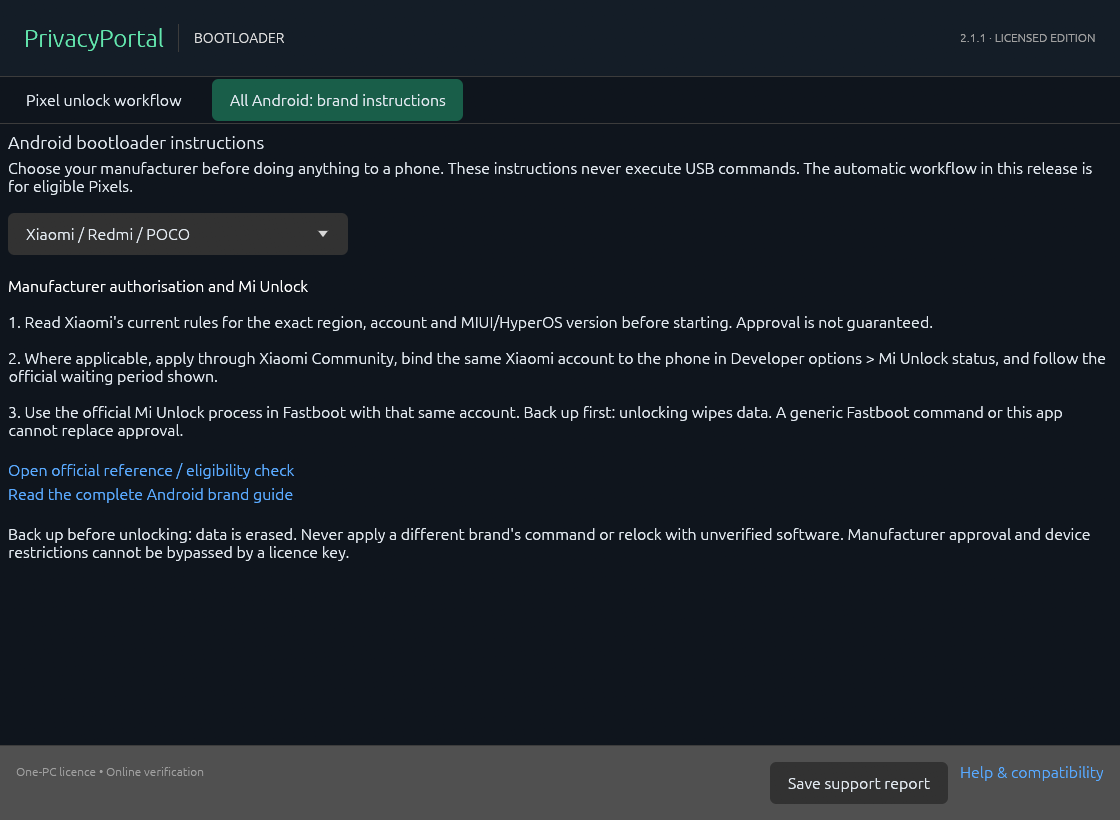
Xiaomi / Redmi / POCO: Manufacturer authorisation and Mi Unlock
- Read Xiaomi's current rules for the exact region, account and MIUI/HyperOS version before starting. Approval is not guaranteed.
- Where applicable, apply through Xiaomi Community, bind the same Xiaomi account to the phone in Developer options > Mi Unlock status, and follow the official waiting period shown.
- Use the official Mi Unlock process in Fastboot with that same account. Back up first: unlocking wipes data. A generic Fastboot command or this app cannot replace approval.
Motorola: Manufacturer eligibility and unlock code
- Check the exact device/carrier with Motorola's official bootloader programme. Review its terms yourself; some devices are ineligible.
- Follow Motorola's instructions to obtain the device unlock data and submit it privately to Motorola. Keep IMEI, serial and unlock data out of public posts.
- If Motorola issues a key, use its exact model-specific command and confirm the erase. This app does not request or execute Motorola unlock codes.
Sony Xperia: Sony Open Devices code
- Use Sony's supported-device selector and check that the exact Xperia permits unlocking. Region and carrier variants can differ.
- Back up and read Sony's DRM/functionality warnings. Request a code only through Sony's official portal using the identifier it asks for.
- Follow the command and USB-driver instructions generated for the exact device. Do not substitute the Pixel command or assume relocking restores removed keys.
Fairphone: Current Fairphone model-specific instructions
- Update the phone and follow the current Fairphone support article. Its main procedure excludes Fairphone 2, which has separate instructions.
- Enable the available bootloader/OEM unlocking option and allow verification. Older software may use Fairphone's official code flow.
- Follow the exact model/OS procedure. Some installation instructions include an additional critical-partition step; it is not a generic Android step and is never executed here. Unlocking and relocking erase data.
OnePlus: Model / carrier / firmware dependent
- Identify the exact model, market, carrier and firmware; do not assume all OnePlus devices share a command or token rule.
- Check the manufacturer's current instructions. Its T-Mobile token page is specifically for eligible T-Mobile Edition devices, not all OnePlus phones.
- If your exact variant has a supported route, follow its documented command or token steps after backup. This app supplies guidance only for OnePlus.
Nothing / CMF: Verify exact-model instructions first
- Find the exact phone and firmware in Nothing support. Ask for the current bootloader procedure if it is not documented.
- Use generic Fastboot instructions only after the exact device's documentation confirms that method. A visible OEM switch alone is not proof of compatibility.
- Back up and stop on missing eligibility, token requirements or an unsupported command. This app does not perform Nothing/CMF unlock operations.
Samsung Galaxy: Exact variant / firmware support required
- Ask Samsung support about the exact model number, region, carrier and installed One UI version. Do not buy this app expecting a Galaxy unlock.
- Samsung Developer directs bootloader questions to customer support. A generic Android Fastboot guide is not a verified Galaxy procedure.
- If OEM unlocking is missing or no supported route is confirmed, stop. Do not repeatedly try Pixel commands, change the clock or use unknown paid bypass services.
Huawei / Honor: No current route verified here
- Check the exact model and software with the manufacturer. Do not treat old Huawei-code tutorials as evidence of a service being available today.
- If the manufacturer requires a code and does not issue one for your model, this app cannot supply it or bypass the restriction.
- Do not submit IMEI, account passwords or payment to unverified code sellers. No automatic unlock commands are offered here.
ASUS / OPPO / Realme / Vivo / HMD / LG: No generic route verified here
- Record the exact manufacturer, model, region, carrier and build. Find current official support for that device; old tools and code services can cease to operate.
- Request confirmation of an available bootloader unlock method, any account approval/token, and the correct command or vendor tool.
- If no supported current route exists, keep the device locked. Shared Android software or a chipset name does not imply a shared unlock method.
Official reference for ASUS / OPPO / Realme / Vivo / HMD / LG
Other Android / not sure: Identify first; do not run a guessed command
- Read the model number and software build in Settings > About phone. Check the manufacturer's current device support and carrier policy.
- Choose a supported manufacturer route before enabling debugging or requesting an erase. Developer options, USB debugging and OEM unlocking are different controls.
- If the manufacturer cannot confirm eligibility, stop and ask support with the model/build only. No tool can promise every Android device is unlockable.
How to use ADB and Fastboot on Windows
Use this sequence only after the exact device's current instructions confirm that a standard Fastboot unlock is appropriate. Xiaomi approval flows, Motorola/Sony codes and Galaxy-specific procedures must not be replaced with this example. Keep other Android devices, emulators and wireless ADB sessions disconnected so you do not select the wrong target.
- Download and extract Google's current Platform-Tools. Install the manufacturer's Windows USB driver where required. Open PowerShell inside the extracted folder. The
.\prefix below tells PowerShell to run that local executable. - Back up first, enable Developer options, enable OEM unlocking if your device permits it, and enable USB debugging. Connect a USB data cable and approve the debugging prompt on the phone.
- List Android connections. Continue only when the intended phone is shown with status
device, rather thanunauthorizedoroffline.
.\adb.exe devicesRestart into the bootloader using the documented key combination or ADB. Then list Fastboot connections; use the exact serial printed in that mode, which may differ from the Android serial:
.\adb.exe -s ANDROID_SERIAL reboot bootloader
.\fastboot.exe devices
Replace the placeholder below with the Fastboot serial. The next command requests an unlock and data erase. Only run it if the manufacturer's instructions specify it for your device, your backup is complete and you are ready to confirm on the phone.
.\fastboot.exe -s FASTBOOT_SERIAL flashing unlockFollow the physical confirmation screen. A command being sent is not proof of success: check the phone's bootloader display and the manufacturer's status-verification procedure. Restart only when the phone has completed its work. Do not automatically retry after a disconnection or timeout; first check what the phone actually did. Google's bootloader documentation explains the OEM-unlock prerequisite, confirmation and data reset.
fastboot oem unlock is an older, device-specific route, not a fallback to try blindly when flashing unlock fails. Similarly, critical-partition unlocking, flashing recovery and relocking are separate operations. This guide does not recommend running them across all phones. macOS and Linux users can obtain Google's matching Platform-Tools package; these are separate from the Windows-only PrivacyPortal EXE.
When an unlock tool fails: check the cause before retrying
| What you see | What to check | What it does not establish |
|---|---|---|
| ADB: unauthorized / offline | Phone approval prompt, USB data connection and the Android driver | It does not mean the bootloader is unlocked or eligible. |
| Fastboot: waiting for device / empty list | Bootloader mode, cable and the bootloader USB driver; disconnect other devices | Android file transfer or ADB detection does not confirm Fastboot detection. |
| OEM unlocking missing / not allowed | Manufacturer/carrier policy, exact variant and current firmware | Buying a GUI or replacing the PC does not change the phone's permission. |
| Unknown command / unlock code required | The exact manufacturer's procedure, including any required code or utility | It is not a reason to try every unlock, critical-unlock or flash command. |
| Mi Unlock account mismatch / waiting timer | The same authorised account on phone and tool, device binding and the displayed waiting period | A generic Fastboot wrapper cannot skip Xiaomi's account approval. |
| Disconnected or timed out after confirmation | The phone's actual bootloader display and its documented status check | A command being sent, or a timeout on the PC, does not prove success or failure. Do not repeat an erase blindly. |
For the underlying permission and confirmation requirements, see Android's bootloader documentation. For Xiaomi account and timer conditions, use Xiaomi's current guidance and the message in its official utility rather than a fixed wait copied from an old tutorial.
Bootloader unlock troubleshooting
ADB says unauthorized or shows no device
Unlock the phone screen and approve the USB-debugging prompt. Check that the cable supports data, use a direct USB port and install the correct driver. A successful file-transfer connection does not prove the bootloader driver is installed. Use adb devices while Android is running; use fastboot devices in the appropriate bootloader mode.
Fastboot says waiting for a device
Check the phone's mode, cable and Windows Device Manager. Follow its manufacturer's instructions for the bootloader USB interface. Userspace fastboot, often shown as fastbootd, is not automatically the correct interface for changing the bootloader's lock state. Do not substitute a firmware flash to solve a detection problem.
OEM unlocking is greyed out, missing or denied
Record the exact model and build, then check current manufacturer and carrier eligibility. A network-unlocked SIM slot does not establish an unlockable bootloader. Account approval, waiting periods, enterprise policies or regional restrictions must be resolved through the responsible provider; changing the PC or purchasing a generic licence does not change those permissions.
Unknown command, token required or unlock failed
Stop and compare the command with the exact device instructions. A different command, vendor account or signed token may be required. Do not paste an IMEI, serial, token, private account details or complete unlock-data string into a public troubleshooting post. Give support the model, firmware and error wording first.
What to check before using a GitHub bootloader unlock tool
The BiltuDas1/unlock-Bootloader repository is archived as of 22 August 2026. Its README warns that its method does not work on Android 9 or later and excludes devices needing a special vendor tool. Those are the project's own limitations, irrespective of where its page appears in a search result.
When assessing any repository, inspect its supported devices and Android versions, dependency sources, command behaviour and recovery guidance. Check whether it verifies a target serial, distinguishes ADB from Fastboot and reports a verified result instead of assuming a sent command succeeded. A recent date alone does not prove compatibility, and an older project's popularity is not a guarantee for your current phone.
Can I unlock a bootloader without a PC?
An Android host with USB OTG and an appropriate ADB/Fastboot client can be an interface for some devices, but that does not make the target eligible. It must implement the required USB-host and command functions, and it cannot replace a manufacturer-only desktop application or approval service. For a first attempt, use the manufacturer's documented computer workflow rather than assuming a second phone is a universal replacement.
Does unlocking remove FRP, install root or make relocking safe?
No. Bootloader permission is separate from Google account verification, SIM/network locks and root access. Installing Magisk or a custom ROM requires its own exact-model procedure after an eligible unlock. Relocking with incompatible images or rollback levels can prevent a device booting; follow the OS project's device-specific instructions instead of applying a generic relock command.
How this guide was checked
The PrivacyPortal team reviewed the linked primary documentation and the referenced GitHub README on 21 October 2026. Manufacturer references appear in each brand section. The comparison describes documented functionality and restrictions; it is not an independent benchmark or a claim that every listed handset has been physically tested.
For our own 2.1.1 release, automated tests cover application workflow and licence behaviour, and the download and licence service have been checked live. Physical handset acceptance and Windows code signing remain outstanding. The screenshots show the actual app in labelled preview states. A newer review date does not by itself establish device support.
Useful corrections should identify the affected model, firmware, official source and the relevant section. Send them to admin@privacyportal.co.uk. To reference this comparison, link to the tool comparison or the manufacturer matrix so readers can see the scope and source links.
Choose the next step for your phone
For the concepts, read what bootloader unlocking changes. For the paid Windows app, see PrivacyPortal's bootloader unlock tool and licence requirements. The EXE's automatic device actions are for eligible Pixels; the brand guide is available to everyone. Questions about your exact model can go to admin@privacyportal.co.uk.


